How To Install Huawei Modem Drivers Properly (Solved Connecting Problem)
How To Install Huawei Modem Drivers Properly (Solved Connecting Problem)
Connecting a Huawei USB Modem Dongle or Wi-Fi wingle (such as the E3372, E8372, or older models) to a Windows PC often results in frustrating connectivity drops. The hardware may plug in seamlessly, but tools like DC-Unlocker, HiSuite, or your native network manager will often show a painful "Modem Not Found" or "No Device Detected" error.
This issue happens when Windows fails to assign the proper data card and serial COM ports to the USB hardware. This step-by-step tutorial covers how to install the drivers manually to completely fix connection bugs.
Why Do Huawei Modems Fail to Connect?
When you plug a Huawei modem into a computer, Windows frequently misidentifies it as a standard USB mass storage drive or a generic CD-ROM drive instead of a communication modem. Without the proper Huawei Mobile Connect configuration, firmware flashing tools, service software, and internet dialers cannot push operational commands to the device.
Prerequisites Before Starting
- A PC running Windows 10 or 11 (64-bit or 32-bit).
- The Huawei Data Card Driver setup file downloaded and extracted onto your local drive.
- The Huawei Serial Driver installer package.
- An authenticated tool link or original software setup like Huawei HiSuite or Huawei PC Manager.
Step-by-Step Installation Guide
Follow these sequential instructions to install your drivers correctly:
Step 1: Disconnect and Clear Old Driver Conflicts
Unplug your Huawei modem from the USB slot. Open your PC’s Control Panel, navigate to Programs and Features, and uninstall any broken third-party driver installations or old internet connection managers that might conflict with the new setup.
Step 2: Install the Huawei Data Card Driver Core
Open your extracted driver directory folder on your desktop. Navigate to the Huawei Data Card Driver folder, right-click the setup application file, and select Run as administrator. Click Next through the standard wizard screens to copy the data infrastructure files directly into your Windows operating directory.
Step 3: Run the Huawei Mobile Connect Serial Driver Setup
Once the Data Card installation finishes, return to your main download folder. Open the Huawei Serial Driver module. Run the executable setup file to establish the dedicated communications backend. This specific controller component ensures Windows can identify diagnostic ports properly.
Step 4: Plug in Your Modem and Monitor Device Manager
Insert your Huawei USB modem into a direct motherboard USB port (avoid external unpowered hubs).
- Press the keys
Win + Xsimultaneously and select Device Manager. - Expand the Ports (COM & LPT) section along with the Modems branch.
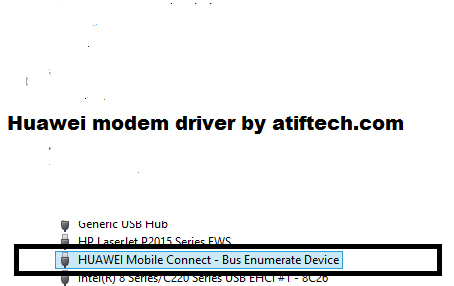
- You should see clean listings without yellow exclamation marks, reading "Huawei Mobile Connect - 3G PCUI Interface" and "Huawei Mobile Connect - 3G Modem".
Step 5: Force Universal Driver Update (If Still Unrecognized)
If your service tool or PC still refuses to see the modem, right-click the unrecognized device marked with a yellow warning triangle inside your Device Manager panel:
- Select Update Driver.
- Click Browse my computer for drivers.
- Choose Let me pick from a list of available drivers on my computer.
- Select Show All Devices, click Have Disk, and target the extracted driver folder manually to assign the Huawei USB COM 1.0 profile.
Conclusion
By manually initializing both the data card structure and the serial communication drivers, your system will properly maintain a stable link with any connected hardware device. Software like DC-Unlocker or network configuration suites will now instantly recognize your equipment on its designated COM port interface.